Elementor Tutorial for Beginners: Build Your First WordPress Website
If you have ever wanted to build a professional WordPress website without spending hours writing code, Elementor is one of the tools you should know.
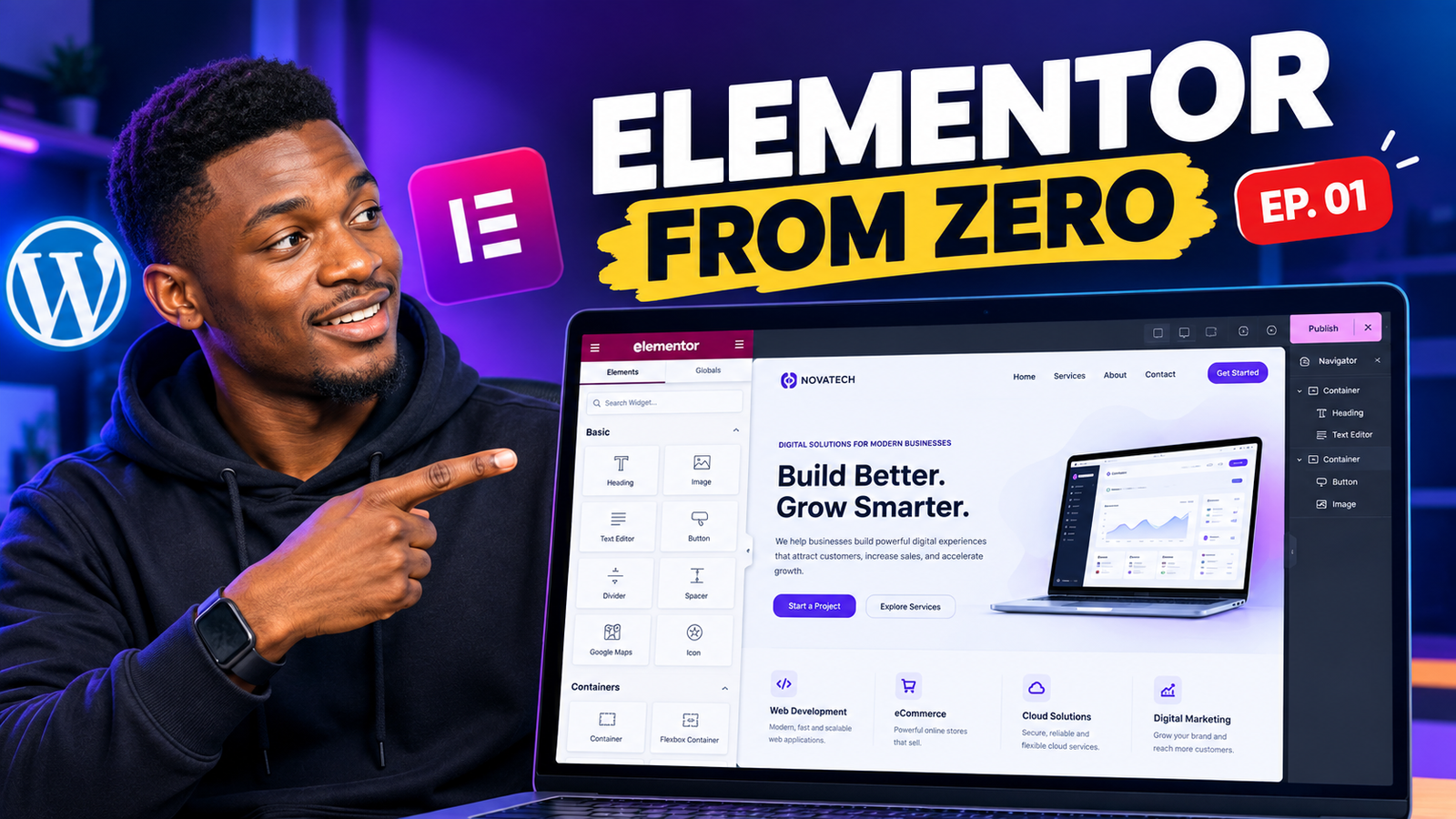
In this first episode of the Elementor Masterclass series, we are starting from the very beginning. You will learn what Elementor is, how it works with WordPress, how to install it, how to use the Elementor editor, and how to build your first professional website section.
By the end of this tutorial, you will have a better understanding of how Elementor works and how to start creating websites visually.
This is Episode 1 of the Elementor Masterclass series – from beginner to professional.
What Is Elementor?
Elementor is a visual website builder for WordPress that allows you to design and build webpages using a drag-and-drop interface.
Instead of writing HTML and CSS every time you want to create a section, button, image, heading, or layout, Elementor gives you visual controls that allow you to build the page directly from the WordPress editor.
You can see your design as you build it and make changes without constantly switching between the editor and the frontend of your website.
For example, you can create:
Business websites
Portfolio websites
Landing pages
Blog websites
E-commerce stores
Agency websites
Service websites
Personal websites
Marketing pages
And with Elementor Pro, you can access additional tools for building more advanced websites.
WordPress vs Elementor: What’s the Difference?
One of the first things beginners need to understand is that WordPress and Elementor are not the same thing.
WordPress
WordPress is the content management system that powers your website.
Think of WordPress as the foundation of your house.
It provides the infrastructure for your website, including:
Pages
Posts
Media
Users
Plugins
Themes
Website settings
Elementor
Elementor is a website-building tool that works inside WordPress.
Think of Elementor as the tool you use to design and arrange the rooms inside the house.
So the relationship is:
WordPress → Website Platform
Elementor → Visual Website Builder
You install Elementor on WordPress and then use it to create and design your pages.
Elementor Free vs Elementor Pro
Elementor comes in different versions.
The free version provides many of the tools beginners need to start creating websites.
Depending on your project, Elementor Pro can provide additional functionality for more advanced website development.
Some advanced capabilities include:
Theme Builder
Dynamic content
Advanced forms
Popups
WooCommerce design features
Additional widgets
Custom CSS capabilities
More advanced website-building workflows
However, you don’t necessarily need Elementor Pro to start learning Elementor.
If you’re completely new, start with the fundamentals first.
Once you understand containers, widgets, spacing, responsive design, and styling, moving into advanced Elementor features becomes much easier.
What We Are Building in This Tutorial
For this Elementor series, we will use a fictional technology company called NovaTech as our practical project.
The website will have a modern technology-agency design.
NovaTech
Tagline:
Build Better. Grow Smarter.
Services
Web Development
eCommerce
Cloud Solutions
Digital Marketing
Our homepage hero section will contain:
Eyebrow:
DIGITAL SOLUTIONS FOR MODERN BUSINESSES
Main Heading:
Build Better. Grow Smarter.
Description:
We help businesses build powerful digital experiences that attract customers, increase sales, and accelerate growth.
And two call-to-action buttons:
Start a Project
Explore Services
This project will continue throughout the Elementor series as we progressively transform it into a complete professional website.
Step 1: Install Elementor
Before we can start designing, Elementor needs to be installed on our WordPress website.
From your WordPress dashboard, go to:
Plugins → Add New Plugin
Search for:
Elementor
Install the Elementor plugin and activate it.
Once activated, Elementor becomes available as a visual editing option for supported pages.
If you are using Elementor Pro, the Pro plugin can be installed and connected after installing the free Elementor plugin.
Step 2: Create Your Homepage
The next step is to create the page that will become our homepage.
From the WordPress dashboard:
Pages → Add New
Give your page a name such as:
Home
Save or publish the page.
You can then choose to edit the page using Elementor.
When Elementor opens, you will enter the visual editing environment.
This is where most of the work in this series will happen.
Step 3: Understanding the Elementor Editor
When you first open Elementor, the interface may look overwhelming.
But there are a few important areas you need to understand.
The Elementor Panel
This is where you find your widgets and controls.
Depending on your Elementor version, you’ll see different categories and options.
The Canvas
The large area on the right is your website canvas.
This is where you see your page and interact with your design.
Widgets
Widgets are the individual building blocks you place on your website.
Examples include:
Heading
Text Editor
Image
Button
Icon
Video
Spacer
Divider
Instead of thinking about a website as one giant design, think about it as a collection of smaller components.
For example:
Hero Section
→ Heading
→ Paragraph
→ Button
→ Image
This way of thinking makes Elementor much easier to understand.
Step 4: Understanding Containers
One of the most important concepts to understand in modern Elementor is the Container.
A container is a layout structure that holds your content and other containers.
Inside a container, you can place widgets such as:
Headings
Text
Images
Buttons
Icons
You can also place another container inside a container.
This creates a nested layout.
For example:
Parent Container
→ Heading
→ Text
→ Button
Or:
Parent Container
→ Child Container
→ Heading
→ Text
→ Button
→ Child Container
→ Image
This container-based approach gives you much more control over your layouts.
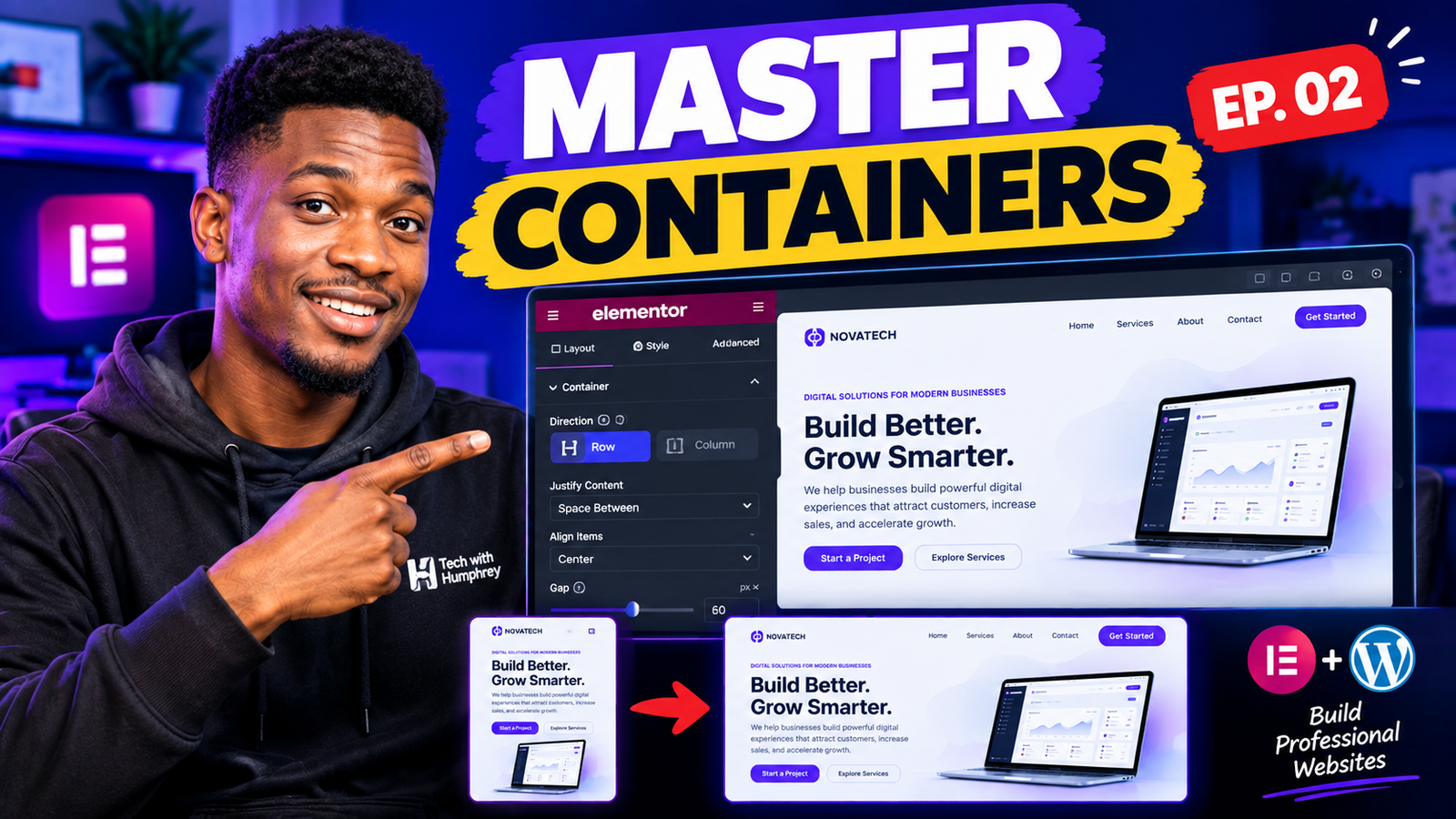
We will explore containers and Flexbox in much greater detail in Episode 2.
Step 5: Build Your First Hero Section
Now let’s create the first major section of our NovaTech website.
The hero section is usually the first major content visitors see when they arrive on a homepage.
Our hero will communicate three important things:
Who the business is
What the business does
What action the visitor should take
For NovaTech, we want to communicate:
Digital solutions for modern businesses.
Add the Main Heading
Add a Heading widget to your container.
Enter:
Build Better. Grow Smarter.
This is our primary headline.
Your headline should immediately communicate the main value proposition of the business.
Add Supporting Text
Under the heading, add a Text Editor widget.
Use:
We help businesses build powerful digital experiences that attract customers, increase sales, and accelerate growth.
The purpose of this text is to provide additional context without overwhelming the visitor.
Add Your Buttons
Next, add two buttons.
Primary Button
Start a Project
Secondary Button
Explore Services
Having a clear primary call-to-action makes it easier for visitors to understand what they should do next.
Step 6: Style Your Hero Section
Now that the content is in place, let’s start styling the design.
For the NovaTech project, we’ll use a simple modern design system.
Primary Color
#6C4DF6
Dark Color
#111827
Background
#F7F8FC
White
#FFFFFF
Secondary Text
#667085
For typography, we can use a clean, modern font such as:
Inter
or
Manrope
The goal isn’t simply to make the page colorful.
The goal is to create a consistent visual system.
Why Design Systems Matter
A common mistake beginners make is styling every element individually without a consistent plan.
For example, one heading might use:
48px
another 42px
another 56px
One button might be purple while another uses a completely different shade.
One section might have 20px spacing while another uses 73px.
The result can feel inconsistent.
Instead, establish your basic design rules before building the entire website.
For example:
Primary Color: #6C4DF6
Heading Color: #111827
Body Text: #667085
Background: #F7F8FC
Font: Inter
This creates consistency throughout the website.
Step 7: Add a Visual
A modern hero section usually benefits from a strong visual.
For NovaTech, we use a modern laptop mockup displaying a technology dashboard.
This helps visitors immediately understand the type of digital experience the company creates.
Add an Image widget and upload your selected laptop or website mockup.
Then adjust:
Image width
Alignment
Spacing
Position
Responsive settings
Don’t simply upload an image and leave it at its default size.
The image should work together with the rest of the hero composition.
Step 8: Understand the Three Important Elementor Controls
When you select an Elementor element, you’ll commonly work with three major areas:
Content
This controls what the element contains.
For example, with a heading:
Content → Heading Text
Style
This controls how the element looks.
For example:
Typography
Color
Background
Border
Shadow
Advanced
This controls additional layout and spacing settings.
For example:
Margin
Padding
Positioning
Responsive settings
Custom CSS options where available
A simple mental model is:
Content = What it says
Style = How it looks
Advanced = How it behaves and is positioned
This mental model will become extremely useful as we progress through the series.
Step 9: Check the Responsive Design
A website isn’t finished simply because it looks good on your laptop.
People will visit your website using:
Desktop computers
Laptops
Tablets
Smartphones
Therefore, you need to check your design across different screen sizes.
In Elementor, switch between the available responsive previews and inspect your page.
Look for problems such as:
Text becoming too large
Buttons becoming too wide
Images overflowing
Sections becoming cramped
Poor spacing
Content becoming difficult to read
A design that looks excellent on desktop can easily look terrible on mobile if you don’t test it.
Desktop vs Mobile Design
For the NovaTech hero, our desktop design will eventually have the content and image positioned beside each other.
On mobile, the layout should become stacked.
Conceptually:
Desktop
Text | Image
Mobile
Text
Image
This is why understanding Elementor’s responsive controls is so important.
You don’t necessarily need to create a completely different website for mobile.
Instead, you adapt the same layout to different screen sizes.
Step 10: Preview and Publish
Once you’re happy with the design, use Elementor’s preview functionality to see how the page looks from the visitor’s perspective.
Check:
Desktop
Tablet
Mobile
Buttons
Images
Spacing
Typography
Alignment
Then publish the page when you’re satisfied with the result.
Congratulations!
You’ve created your first Elementor page.
What You’ve Learned in Episode 1
By completing this tutorial, you should now understand:
What Elementor is
How Elementor works with WordPress
The difference between WordPress and Elementor
Elementor Free vs Pro
How to install Elementor
How to create a page
How to open the Elementor editor
What widgets are
What containers are
How to add headings
How to add text
How to add buttons
How to add images
How to style elements
How Content, Style, and Advanced controls work
Why responsive design matters
How to preview and publish a page
But this is only the beginning.
What’s Next? Elementor Containers & Flexbox
In Episode 2, we’re going deeper into one of the most important parts of modern Elementor: Containers and Flexbox.
We will take our NovaTech hero section and turn it into a proper responsive layout.
You’ll learn concepts such as:
Parent containers
Child containers
Nested containers
Row direction
Column direction
Main axis
Cross axis
Justify Content
Align Items
Gap
Container width
Min height
Wrap
Padding
Responsive layouts
Element ordering
Instead of simply clicking buttons without understanding them, you’ll learn why each setting exists and when to use it.
That’s the difference between following an Elementor tutorial and actually learning how to build websites with Elementor.
Final Thoughts
Elementor is much more than a drag-and-drop page builder.
When you understand how layouts, containers, spacing, typography, responsive design, and visual hierarchy work together, you can use Elementor to build professional websites rather than simply placing widgets on a page.
The goal of this series is to take you from the fundamentals all the way to building complete, responsive, conversion-focused websites.
If you’re following along with the series, make sure you build the NovaTech project yourself rather than simply watching the tutorial.
Pause the video. Try the settings. Break the layout. Fix it. Experiment.