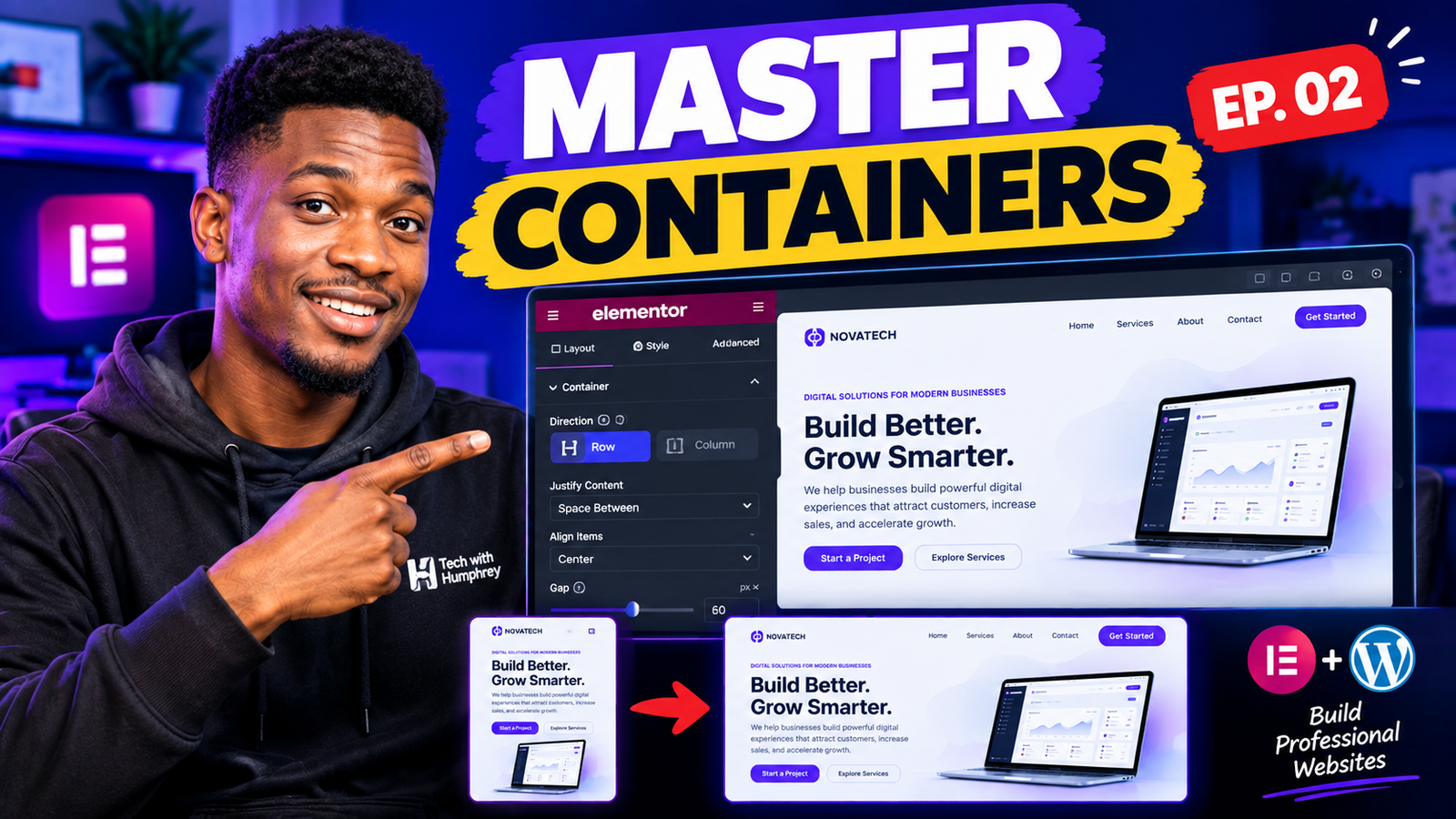
If you want to build professional websites with Elementor, understanding Containers and Flexbox is one of the most important skills you can learn.
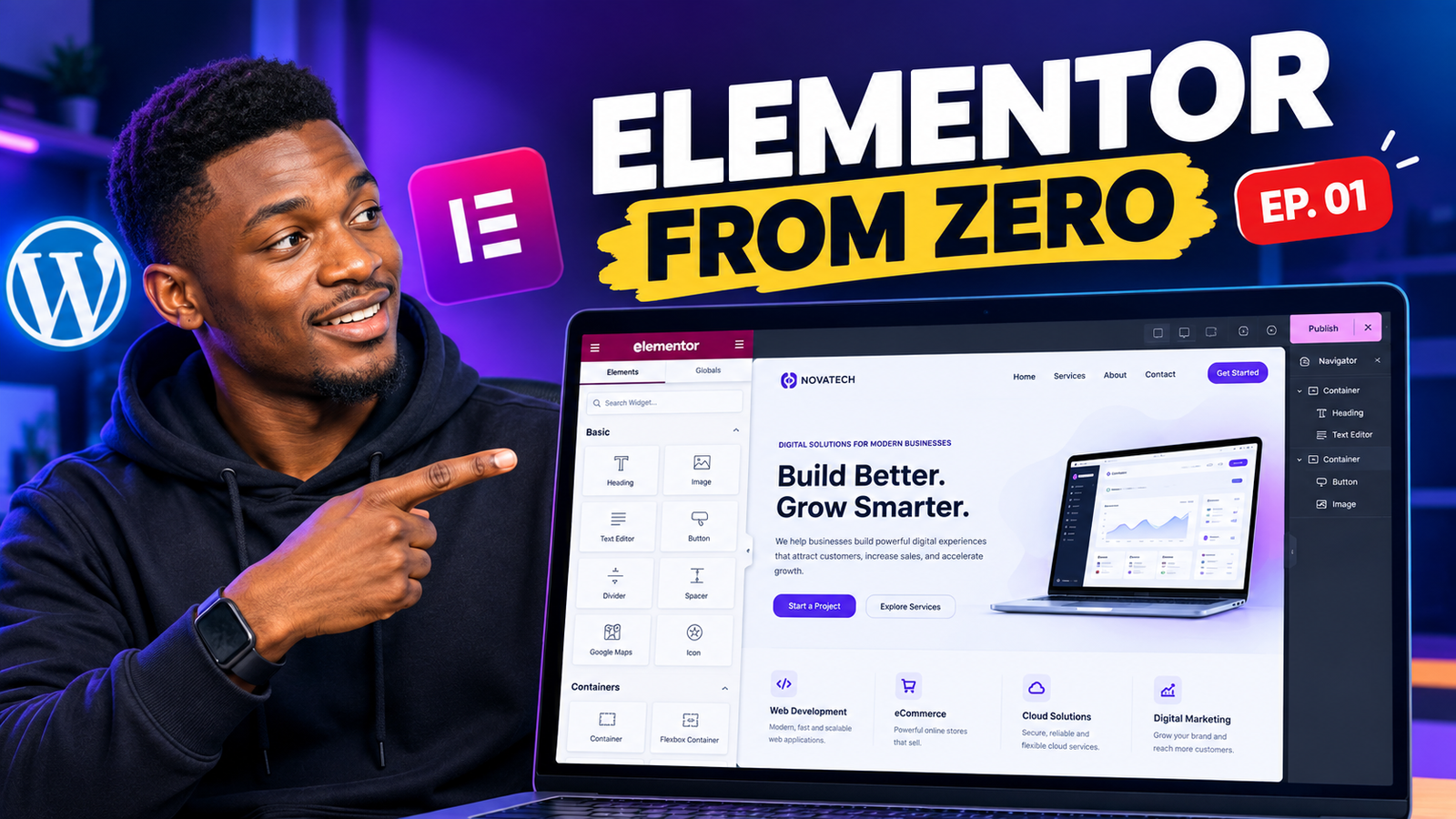
In Episode 1 of this Elementor Masterclass series, we learned what Elementor is, how it works with WordPress, how to use the editor, and how to build the basic NovaTech homepage.
In this episode, we’re taking the next step.
We’ll learn how Elementor Containers work, how Flexbox controls the layout of your content, how to arrange elements horizontally and vertically, and how to create responsive layouts for desktop, tablet, and mobile.
By the end of this tutorial, you’ll understand not just what to click, but why you’re clicking it.
This is Episode 2 of the Elementor Masterclass – from beginner to professional.
What Is an Elementor Container?
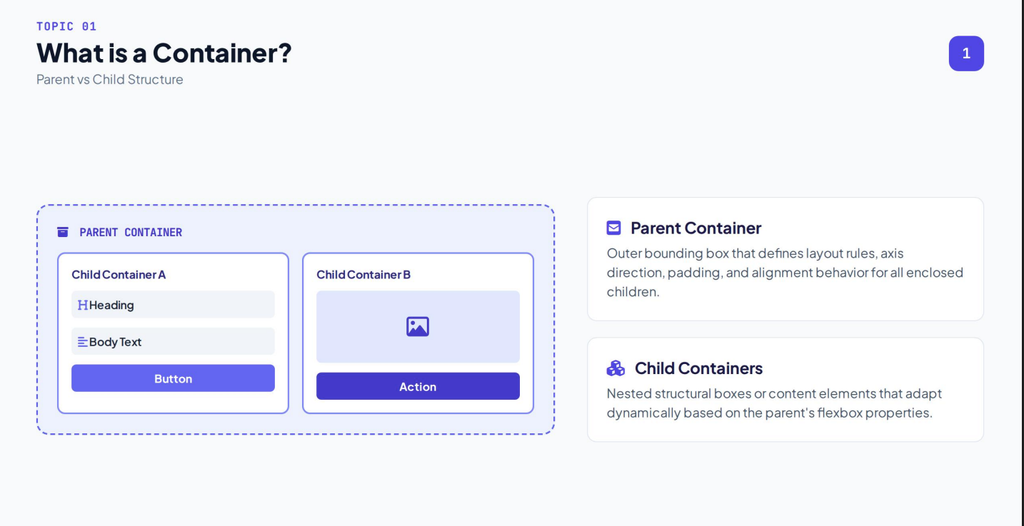
A container is a layout structure that holds your website content.
You can place widgets inside a container, but you can also place other containers inside it.
For example:
Parent Container
→ Heading → Text → Button
Or you can create a more advanced layout:
Parent Container
→ Left Child Container
Heading
Text
Buttons
→ Right Child Container
Image
This structure allows you to create professional layouts without relying on the old section-and-column approach.
Modern Elementor uses Flexbox Containers to give you more control over how elements are positioned, aligned, spaced, and ordered.
Why Containers Matter
Imagine you’re designing a homepage hero section.
You want the text on the left and an image on the right.
You could simply add widgets and start moving them around manually.
But that’s not a good way to build a responsive website.
Instead, you should tell Elementor how the elements should behave.
For example:
“These two containers should sit beside each other on desktop.”
That’s where Flexbox comes in.
Rather than manually positioning every element, you define the layout rules.
Elementor then uses those rules to arrange your content.
This makes your website:
Easier to design
Easier to maintain
More responsive
More flexible
Easier to modify
The Parent and Child Container Concept
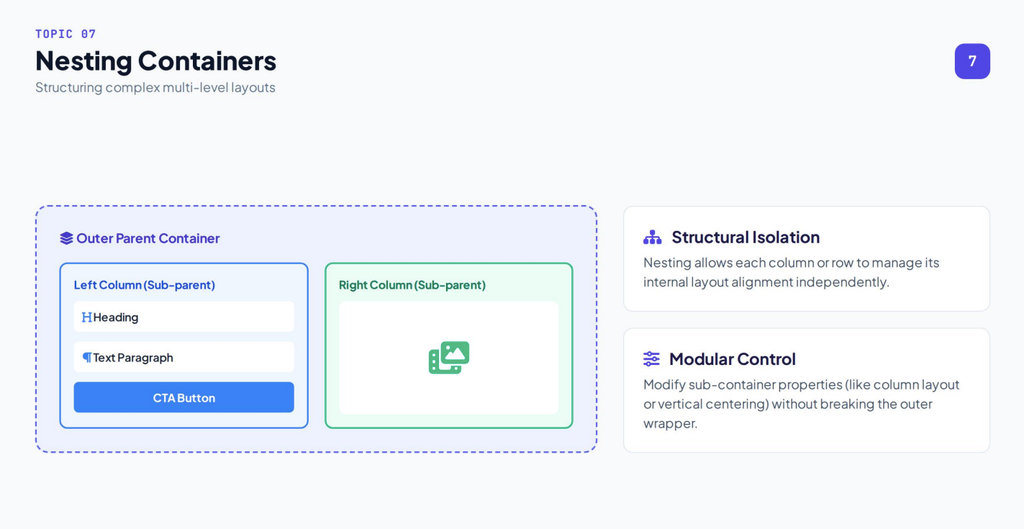
One of the most important concepts in this episode is understanding the relationship between parent and child containers.
Think of the parent container as the manager.
The parent decides how its children should be arranged.
For example:
Parent Container
→ Left Container
→ Right Container
The parent might tell the children:
“Arrange yourselves horizontally.”
The children then appear beside each other.
Inside the left child container, you can have:
Eyebrow text
Heading
Paragraph
Buttons
The right child container can contain:
Laptop image
This gives us a clean hierarchy.
Remember this:
The parent controls the relationship between the children. The child controls the layout of the content inside it.
This is one of the most useful mental models to remember when working with Elementor Containers.
Understanding Flexbox
Flexbox is a CSS layout system that allows elements to be arranged along an axis.
You don’t need to become a CSS expert to use it in Elementor.
Elementor provides visual controls for the most important Flexbox properties.
The two most important directions are:
Row
and
Column
Row vs Column
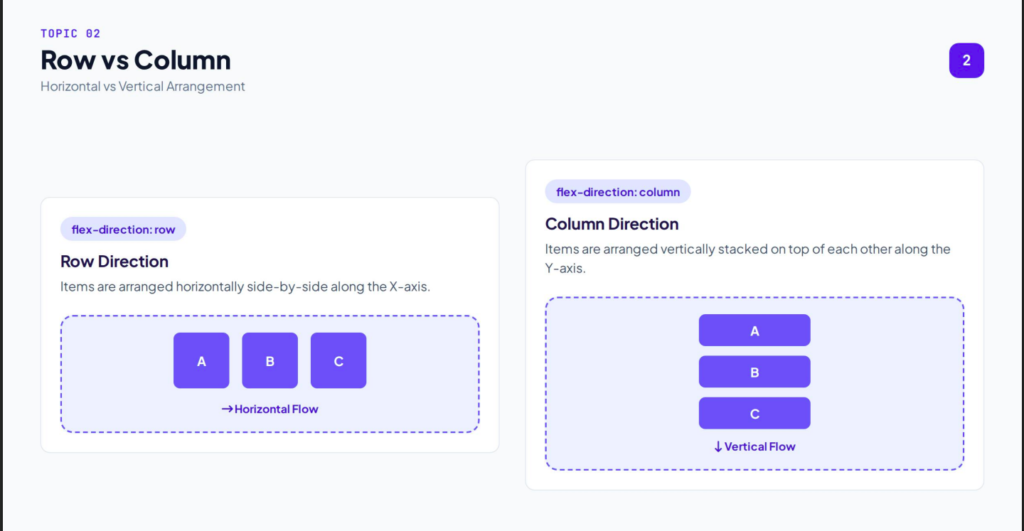
Row
When you set a container’s direction to Row, its children are arranged horizontally.
For example:
A | B | C
This is useful when you want multiple elements to appear beside each other.
Our NovaTech hero will eventually use this approach.
The text will be on the left and the image will be on the right.
Column
When you set the direction to Column, the children are arranged vertically.
For example:
A
B
C
This is useful when you want content stacked vertically.
A typical text content container might use:
Eyebrow
↓
Heading
↓
Paragraph
↓
Buttons
This is why understanding Row and Column is so important.
Main Axis vs Cross Axis
This concept can initially sound complicated, but it’s actually simple.
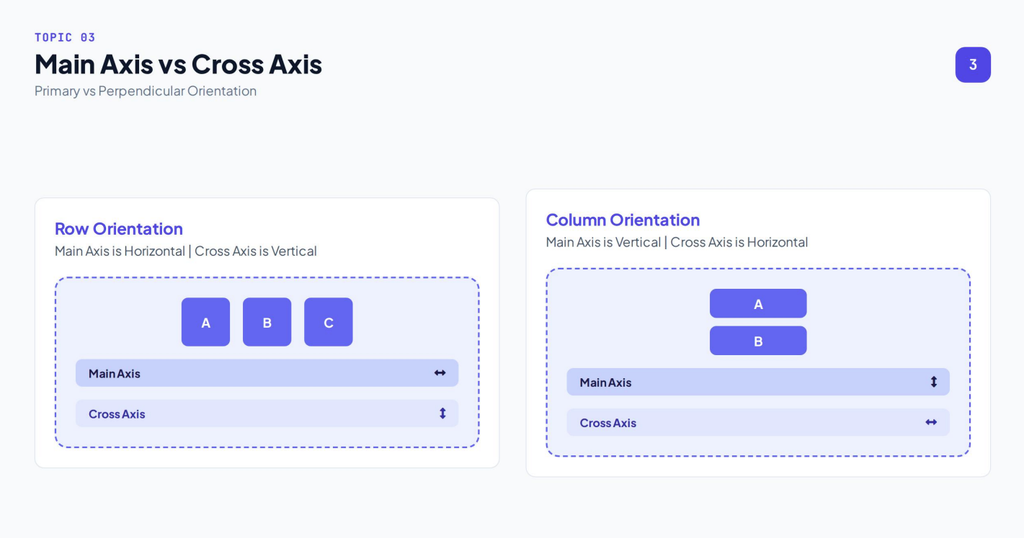
The main axis is determined by the direction of the container.
If the direction is Row:
Main axis = horizontal
If the direction is Column:
Main axis = vertical
The cross axis is the opposite direction.
Row
Main axis → Horizontal
Cross axis → Vertical
Column
Main axis → Vertical
Cross axis → Horizontal
This becomes important when working with Justify Content and Align Items.
Understanding Justify Content
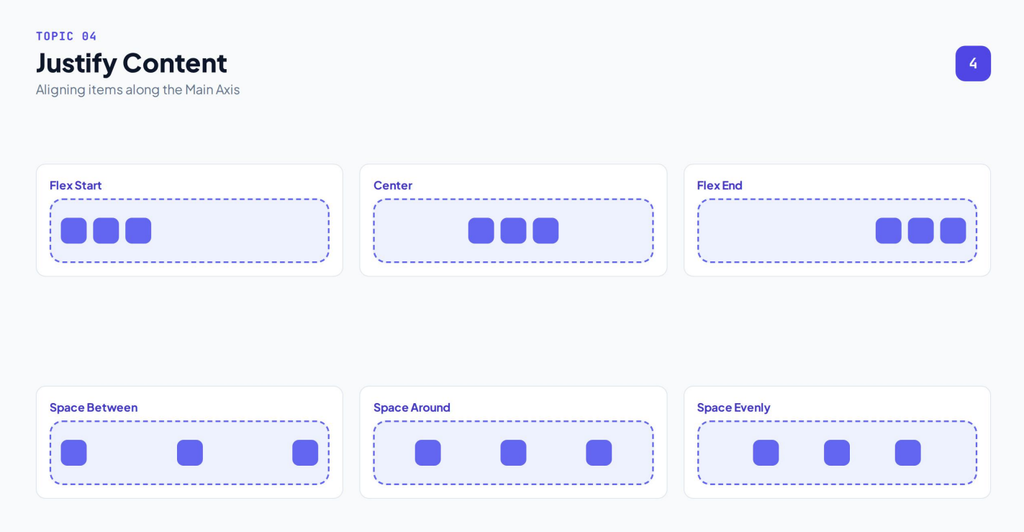
Justify Content controls how the children are distributed along the main axis.
For example, you can use:
Flex Start
Center
Flex End
Space Between
Space Around
Space Evenly
Let’s say you have three elements:
A B C
With Flex Start, the elements stay toward the beginning of the main axis.
With Center, they move toward the center.
With Flex End, they move toward the end.
With Space Between, Elementor distributes the available space between the elements.
This is particularly useful for layouts where you want content positioned at opposite ends of a container.
Understanding Align Items
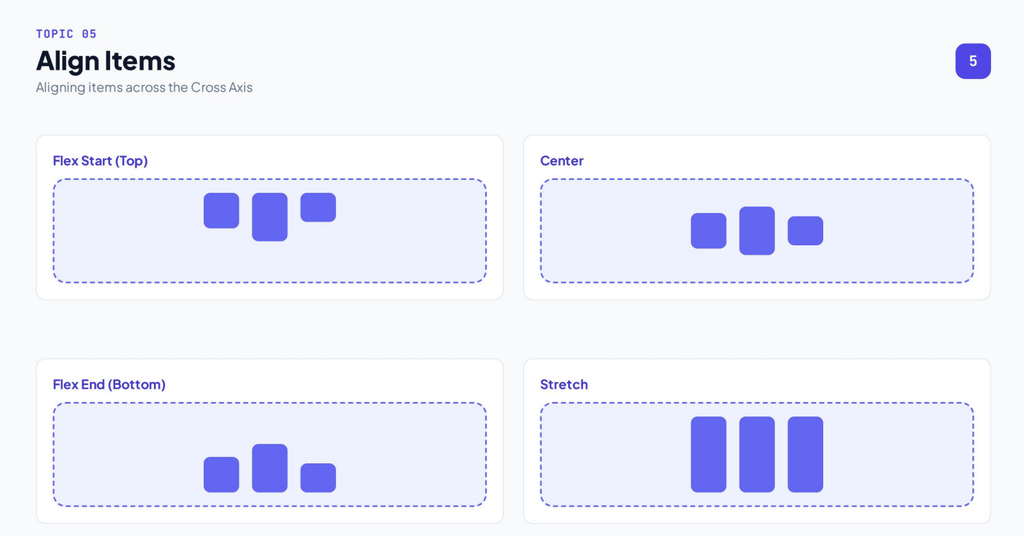
Align Items controls how the children are positioned along the cross axis.
This is why you shouldn’t memorize these settings as random buttons.
Instead, remember:
Justify Content = Main Axis
Align Items = Cross Axis
Once you understand that relationship, Flexbox becomes much easier.
Understanding Gap
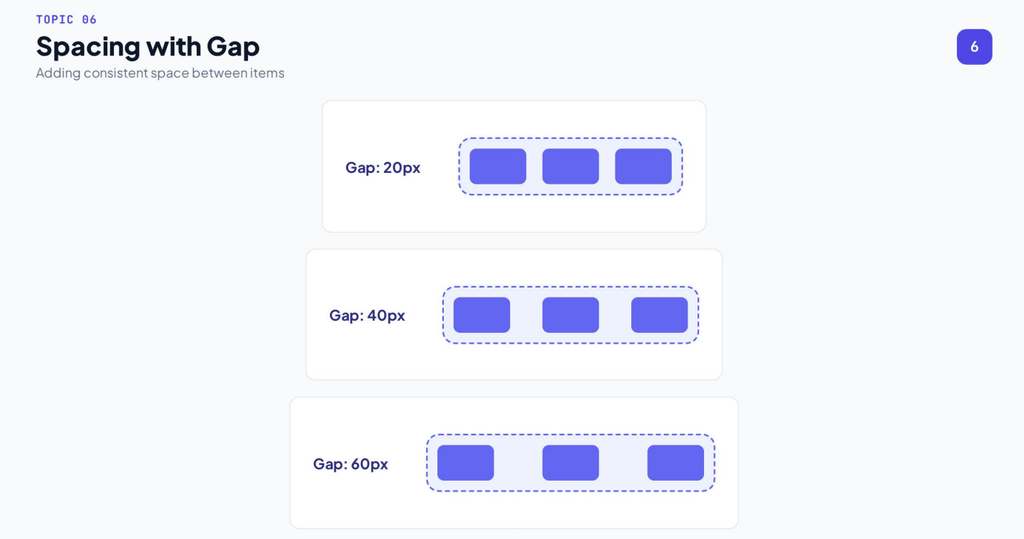
Gap controls the space between the children of a container.
For example:
A B C
You can increase the gap:
A B C
This is different from adding margin to every individual widget.
Using container gap gives you a cleaner way to control spacing between elements.
For example, our NovaTech hero might use a gap of approximately:
60px
between the text container and the image container.
You can then adjust the value depending on the screen size and design.
Building the NovaTech Hero Section
Now let’s apply everything we’ve learned to our practical project.
Our NovaTech hero currently contains our basic content from Episode 1.
We want to transform it into a professional desktop layout.
The goal is:
Desktop
Text Content | Laptop Image
Mobile
Text Content
Laptop Image
To achieve this, we’ll use a parent container with two child containers.
Step 1: Create the Parent Container
First, create a Flexbox container that will act as the main wrapper for the hero.
This is our:
Parent Container
The parent will contain two child containers.
Step 2: Create the Left Child Container
The first child container will contain our text content.
Inside it, we’ll have:
Eyebrow
Heading
Paragraph
Buttons
The structure will look like:
Left Child Container
→ Eyebrow
→ Heading
→ Paragraph
→ Buttons
This container should use a Column direction because we want these elements stacked vertically.
Step 3: Create the Right Child Container
The second child container will hold our laptop image.
The structure becomes:
Right Child Container
→ Image
This gives us a clean two-column-style layout using Flexbox.
Step 4: Set the Parent Direction to Row
Now select the parent container.
Go to the Layout settings and change:
Direction → Row
Immediately, the two child containers will move beside each other.
Our layout becomes:
Left Content | Right Image
This is the power of Flexbox.
We didn’t manually position the elements.
We simply told the parent container how its children should be arranged.
Step 5: Align the Content Vertically
Our text and image may not line up correctly yet.
This is where Align Items becomes useful.
Set:
Align Items → Center
Now the two child containers are vertically aligned within the parent.
This creates a much cleaner hero composition.
Step 6: Add Space Between the Containers
Next, we need some breathing room between the text and image.
Set the container’s:
Gap → 60px
You can adjust this value depending on the design.
The important thing is to avoid allowing the two sides to sit too close together.
Step 7: Control the Width
Now let’s give each child container a reasonable width.
For example:
Left Container → approximately 55%
Right Container → approximately 45%
This creates a slightly larger area for the text while giving the image enough room to breathe.
The exact values don’t have to be identical on every website.
The correct width depends on the design.
Step 8: Set the Minimum Height
A hero section often needs enough vertical space to create a strong first impression.
You can use the container’s Min Height setting to establish a minimum height.
For example:
Min Height → approximately 650px
The exact value depends on your design and screen size.
Avoid treating 650px as a universal rule.
Instead, use it as a starting point and adjust the layout visually.
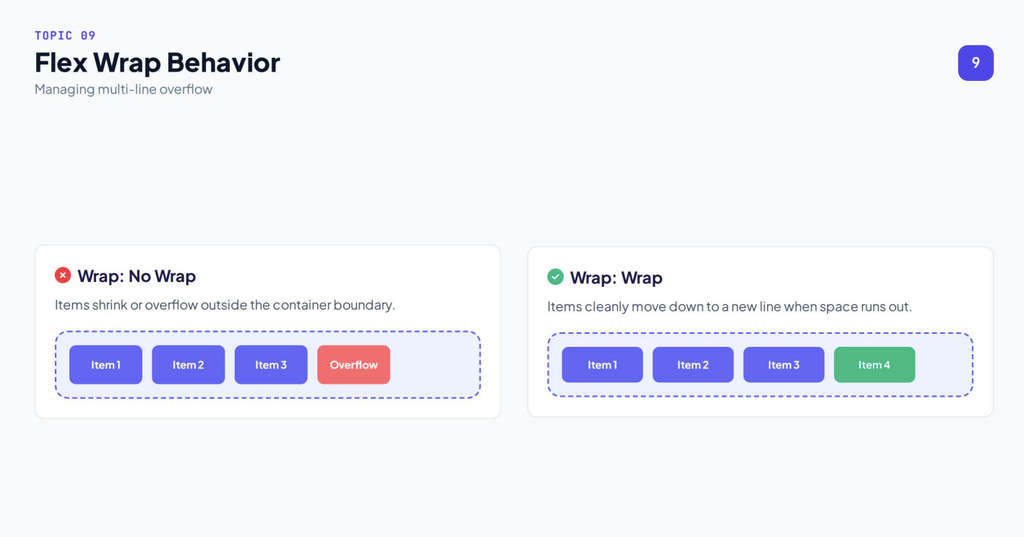
Understanding Wrap
Another important Flexbox setting is Wrap.
When there isn’t enough horizontal space for all the children to fit comfortably on one line, wrapping allows them to move onto another line.
This can help prevent content from overflowing.
However, for a simple hero layout, we may want to control the responsive transition more intentionally rather than relying entirely on wrapping.
That’s why responsive settings are important.
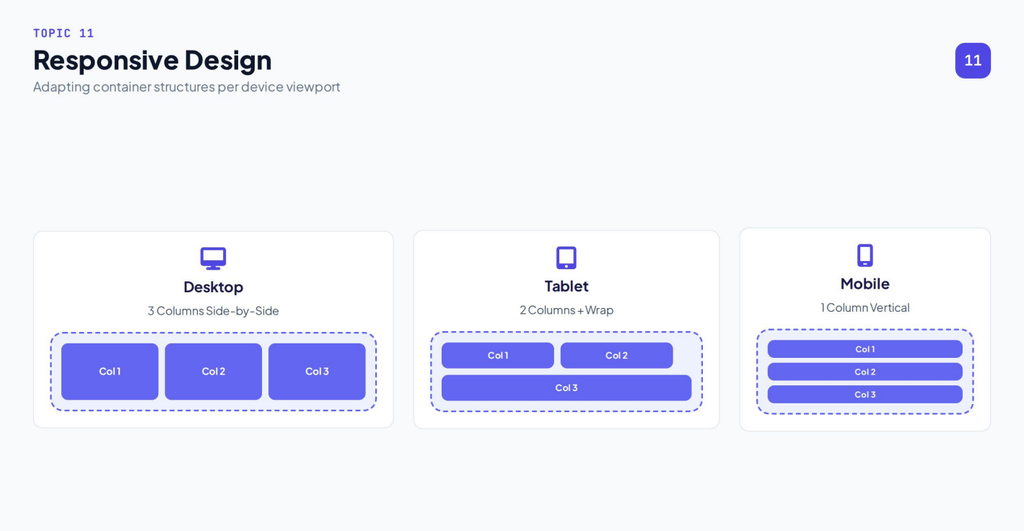
Responsive Design in Elementor
A website isn’t complete until it works properly on different devices.
Our NovaTech layout looks great on desktop:
Text | Image
But on a mobile phone, putting these two elements side by side may make the content too cramped.
Instead, we want:
Text
↓
Image
Therefore, we need to change the parent container’s direction on mobile.
Desktop Layout
For desktop:
Direction → Row
This gives us:
Text | Image
Mobile Layout
For mobile:
Direction → Column
This gives us:
Text
↓
Image
This is one of the most powerful features of Elementor’s responsive controls.
You can change layout behavior at different breakpoints without rebuilding the entire page.
Adjusting the Mobile Layout
Once the direction changes to Column, we should also review our spacing.
For example:
Parent Padding → 24px
Gap → 32px
The heading size should also be reduced.
For example:
Desktop Heading → approximately 60px
Mobile Heading → approximately 40px
Again, these are starting points rather than strict rules.
The goal is to create a comfortable reading experience.
Make the Image Responsive
The laptop image should also adapt to the smaller screen.
On mobile, we can allow the image to use the available container width.
For example:
Image Width → 100%
This helps prevent the image from overflowing the screen.
Always preview the page at the actual target device size and adjust as necessary.
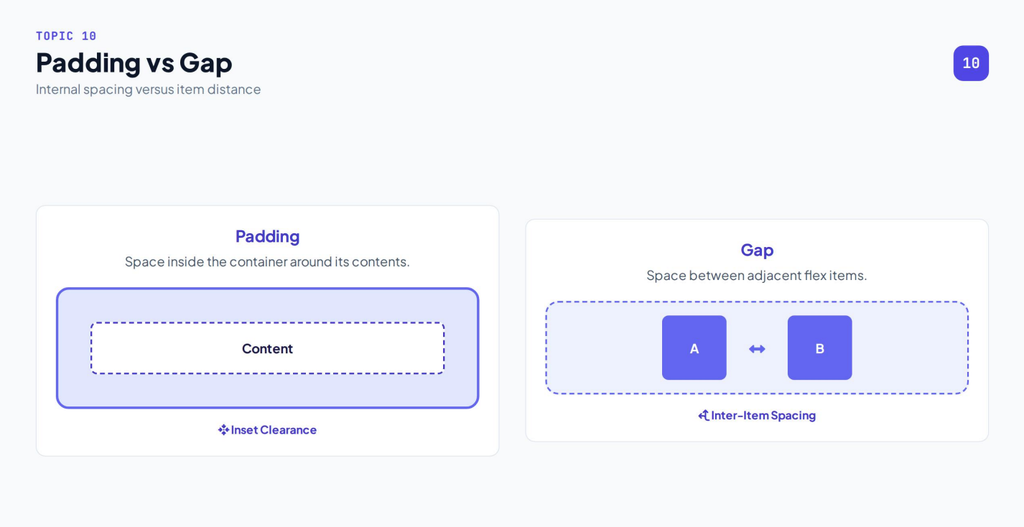
Padding vs Gap: What’s the Difference?
Beginners often confuse these two properties.
The easiest way to understand them is:
Padding
Padding creates space inside the container.
Think:
Container edge → Padding → Content
Gap
Gap creates space between children.
Think:
Child A → Gap → Child B
For example:
If you want more breathing room around the entire hero content, increase the padding.
If you want more space between the text and image, increase the gap.
Understanding this distinction will save you a lot of frustration when building layouts.
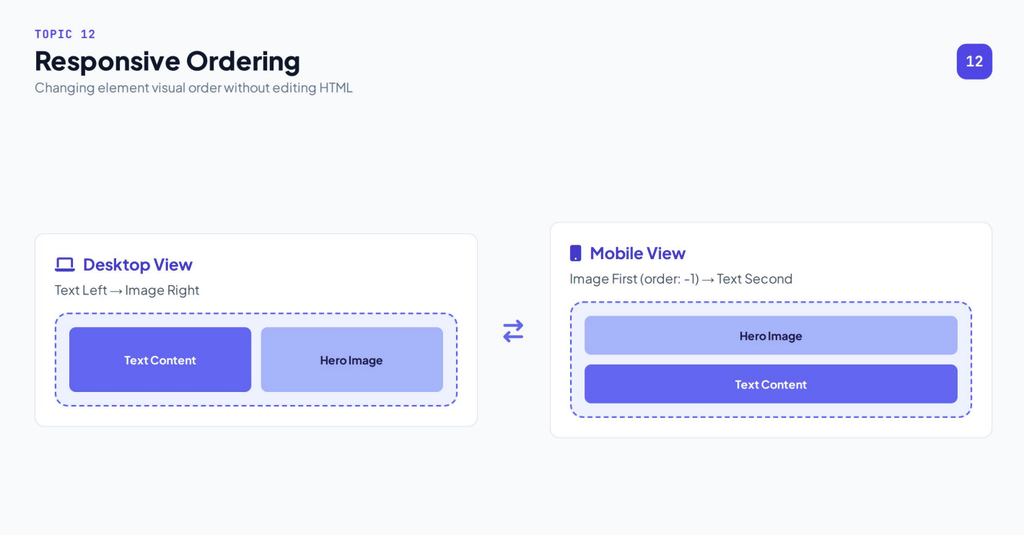
Responsive Element Ordering
Flexbox also allows you to control the order of elements.
Imagine your desktop layout contains:
Text → Image
But you want the image to appear before the text on mobile.
You can use the Order property to change the visual order of the elements at the appropriate breakpoint.
This can be extremely useful when creating responsive landing pages.
The Final NovaTech Layout
After applying our settings, the hero should look approximately like this.
Desktop
Left
Digital Solutions for Modern Businesses
Build Better. Grow Smarter.
Supporting paragraph
Start a Project | Explore Services
Right
Laptop/Dashboard visual
Mobile
Digital Solutions for Modern Businesses
Build Better. Grow Smarter.
Supporting paragraph
Start a Project
Explore Services
Laptop/Dashboard visual
This is a much more professional and responsive structure than simply stacking everything without a layout system.
The Elementor Flexbox Mental Model
If you remember nothing else from this episode, remember this framework:
Container
↓
Direction
↓
Main Axis
↓
Justify Content
↓
Cross Axis
↓
Align Items
↓
Gap
↓
Responsive Behavior
Once you understand this relationship, you can start looking at almost any website layout and work out how to recreate it using Elementor.
Common Elementor Container Mistakes
1. Using too many containers
Don’t create containers unnecessarily.
A clean hierarchy is easier to maintain.
Use containers when they serve a structural purpose.
2. Using margins to fix everything
Margin can be useful, but it shouldn’t be your first solution for every spacing problem.
First consider:
Gap
Padding
Alignment
Container width
Justify Content
3. Ignoring mobile
A desktop layout isn’t automatically a good mobile layout.
Always check your design across different screen sizes.
4. Manually positioning everything
Avoid trying to force elements into place with excessive positioning.
A properly structured Flexbox layout should do most of the work for you.
5. Not understanding the parent container
If several elements aren’t behaving as expected, don’t immediately change every child.
First inspect the parent.
Ask:
What direction is the parent using?
What is the main axis?
How are the children being justified?
How are they being aligned?
This troubleshooting mindset will become extremely valuable as you build more complex websites.
Episode 2 Checklist
Before moving to Episode 3, make sure you understand:
What a container is
Parent and child containers
Nested containers
Flexbox
Row direction
Column direction
Main axis
Cross axis
Justify Content
Align Items
Gap
Container width
Minimum height
Wrap
Padding
Responsive layouts
Responsive element ordering
If you understand these concepts, you have a strong foundation for building layouts in Elementor.
What’s Next?
In Episode 3, we’ll take another major step forward and focus on designing professional website sections.
We’ll move beyond simply understanding the layout system and start thinking more like a professional web designer.
We’ll look at things such as:
Website structure
Section planning
Visual hierarchy
Spacing systems
Typography
Professional hero sections
Content hierarchy
Design consistency
Building reusable design patterns
The goal is to stop thinking:
“Where do I drag this widget?”
And start thinking:
“What layout and design system will give the visitor the best experience?”
That mindset turns Elementor from a page builder into a professional website-building tool.
Final Thoughts
Learning Elementor isn’t about memorizing where every button is.
The real skill is understanding layout, hierarchy, spacing, responsiveness, and user experience.
Containers and Flexbox give you the foundation for that.
Once you understand how a parent container controls the relationship between its children, you can create much more complex layouts without relying on random margins, spacers, or manual positioning.
Keep practicing with the NovaTech project, experiment with Row and Column, change the alignment settings, adjust the gap, and resize the browser to see how your layout responds.
The more you experiment, the faster Flexbox will become intuitive.
Keep building. Keep experimenting. And I’ll see you in Episode 3.







One Response